Google Classroom Tutorials and Troubleshooting
Find tutorials and answers to common questions about using digital classroom resources with Google Classroom™, Seesaw, PowerPoint, and other learning platforms.
That being said, there are some questions that keep coming up again and again.
Can we integrate this resource with SeeSaw?
Many of our Google resources do have Seesaw links included, be sure to check the cover image and description. In this case you do not have to do anything other than click our link and assign to your students.
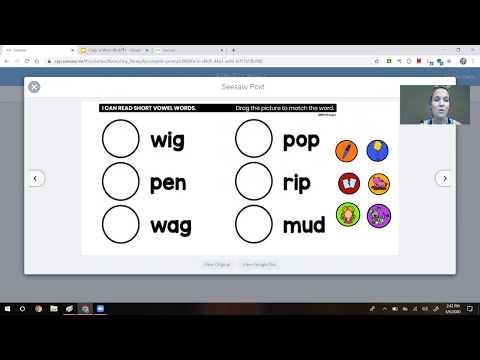
However, if you have a document you want to turn into a Seesaw activity, one of our teacher friends Mrs. Wollard made us this tutorial how to do it. (But many of our resources are already integrated for you). Thanks so much Ms. Wollard!!
When I add it to google classroom as an assignment , when the students compete it do they click submit or do they have to save it and then click submit?
The files will automatically save as your students work.
Is it possible to do interactive activities on the phone?
They can if the parents download the Google App (Slides APP) for those interactive activities.
Can someone take the Google Classroom files and use with PowerPoint?
Yes- go to file, download and download as a powerpoint.
Can they be used with Microsoft Teams?
We have had teachers tell us it does integrate with Google Teams. “You just have to open it in Google, download it as a Powerpoint, then upload it under the “assignments” tab of the general channel on the Classroom Teams page. Ensure that when it is uploaded as an assignment, that the teacher says that each student gets copy they can edit. My student had trouble “turning it in,” but I was still able to view and see his work. Just a tidbit for those who are dealing with Microsoft! ” (Send from Morgan L in TpT Q&A)
We found this video and highly recommend watching it because it will show you exactly how to set it up to have this work.

Can they be used on Canvas?
A teacher shared this tip: “If you have a google slides activity it can be used in canvas through the pairing through an external tool. I posted the majority of my activities in Spring using google slides integration.”
What about Schoology?
Sometimes we get asked about integrating our Google resources with Schoology. It can be done but you may have some different steps. Basically though – “make sure before you add it to schoology you make anyone with the link an editor” and “I use your alphabet slides on schoology and do not have a problem. I do know it’s better to click edit when you log into the kids account. But I feel like there are always random glitches and lots of user errors but on mine side it all works.”
Can slides be deleted on preset Seesaw activities?
We have heard yes. “I just edit, click on an individual page in the right hand bar, and it ask me if I want to duplicate or delete.”
Take a peek inside these resources here: