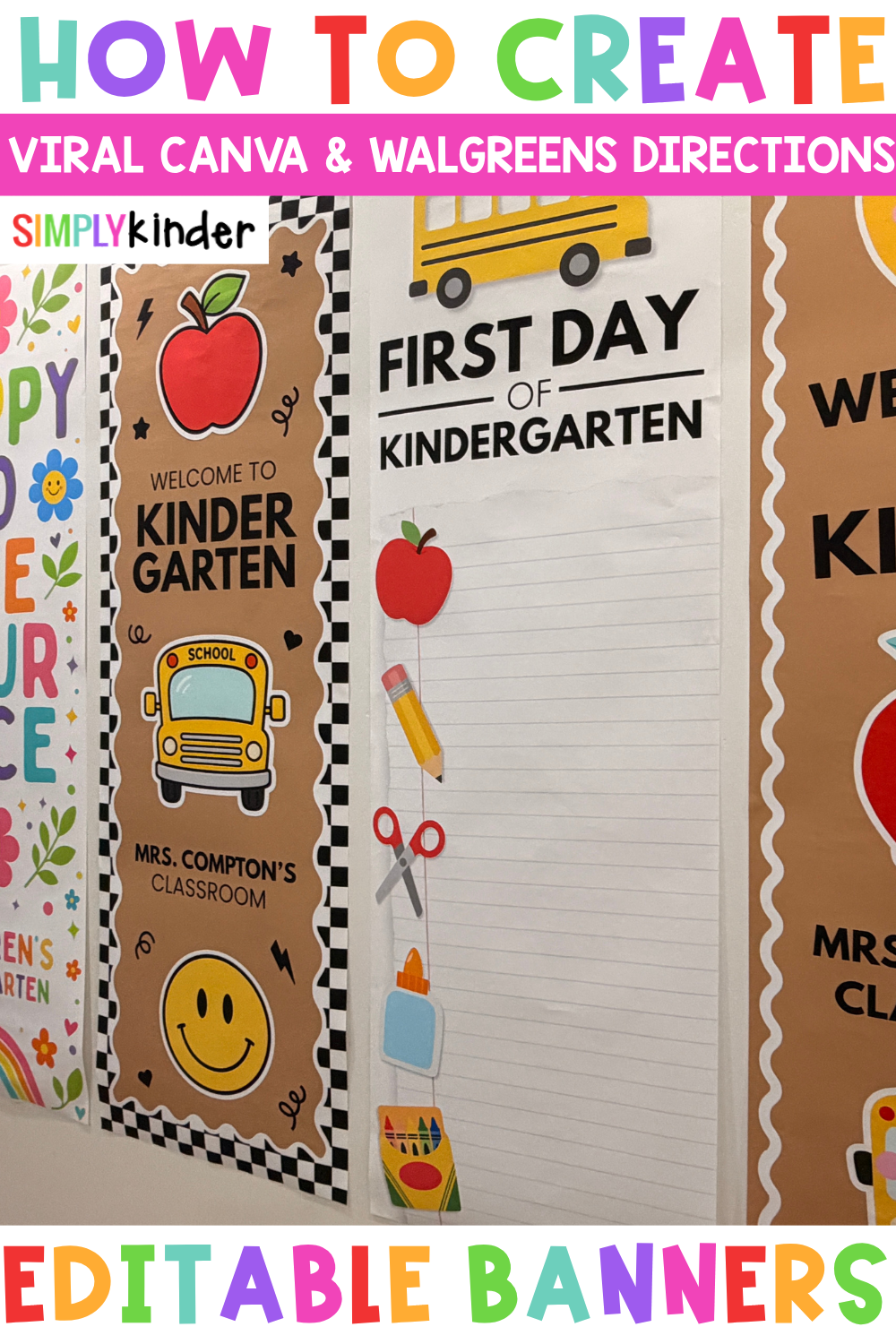



Looking for an easy way to make your classroom door feel welcoming without spending hours creating decorations from scratch?
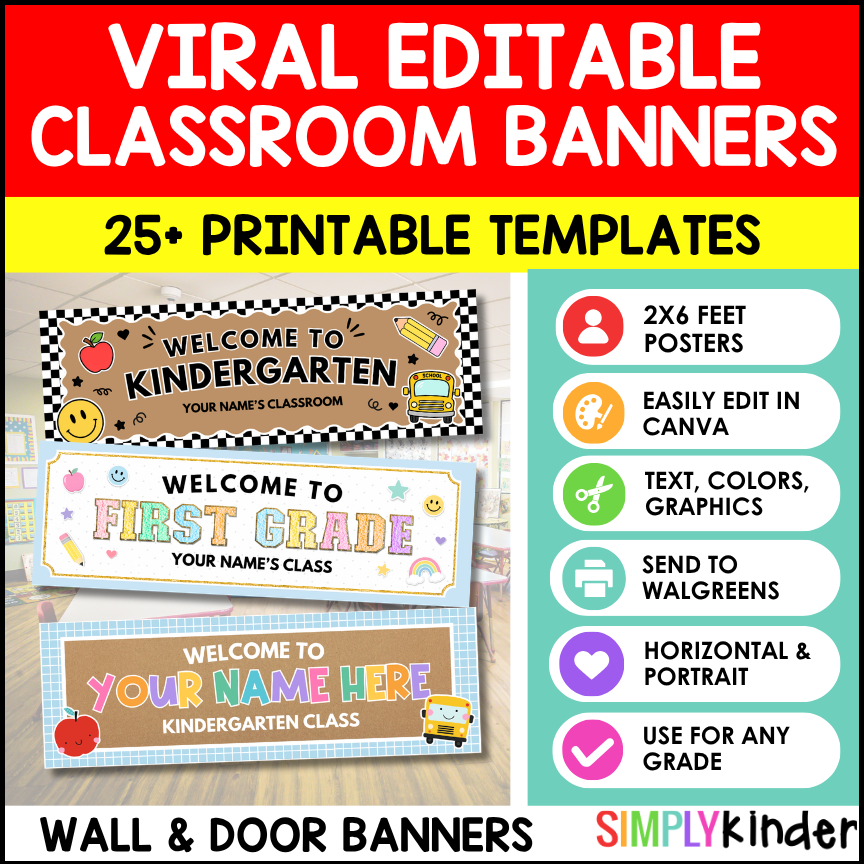
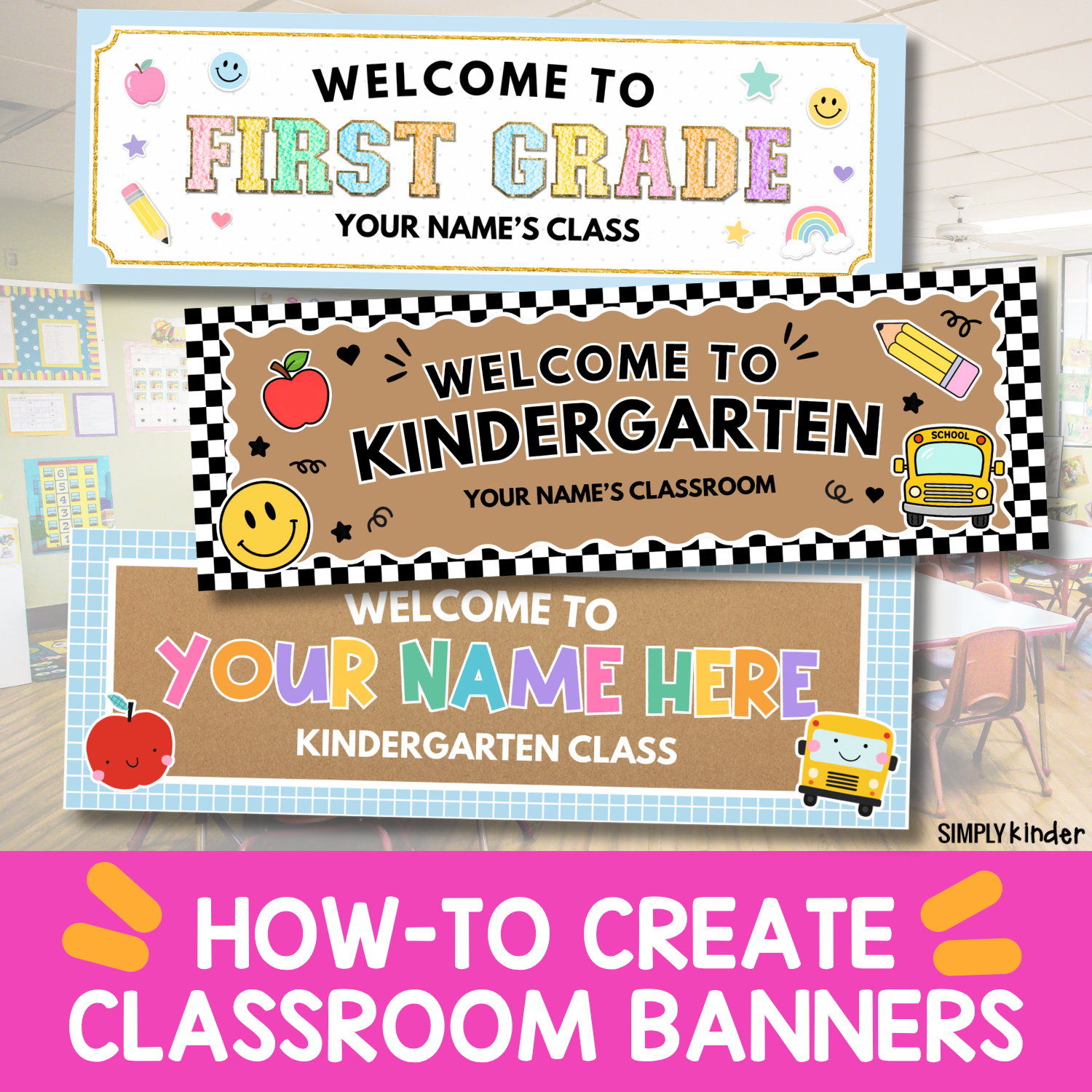
An editable classroom banner is a simple way to personalize your classroom entrance for back to school. Add your name, grade level, school colors, classroom mascot, or welcome message in Canva. Then, download your finished design and have it printed as a large banner at Walgreens.
These printable classroom banners are perfect for:
The best part? You can start with a ready-made Canva classroom banner template and customize it to match your classroom.
Check out these related posts:

Your classroom entrance is one of the first things students and families see. A colorful welcome banner can help your room feel inviting before anyone even walks through the door.
With an editable Canva banner, you don’t have to settle for a generic classroom sign. You can personalize the design with:
You can also add, remove, resize, or rearrange graphics to make the banner fit your classroom theme.
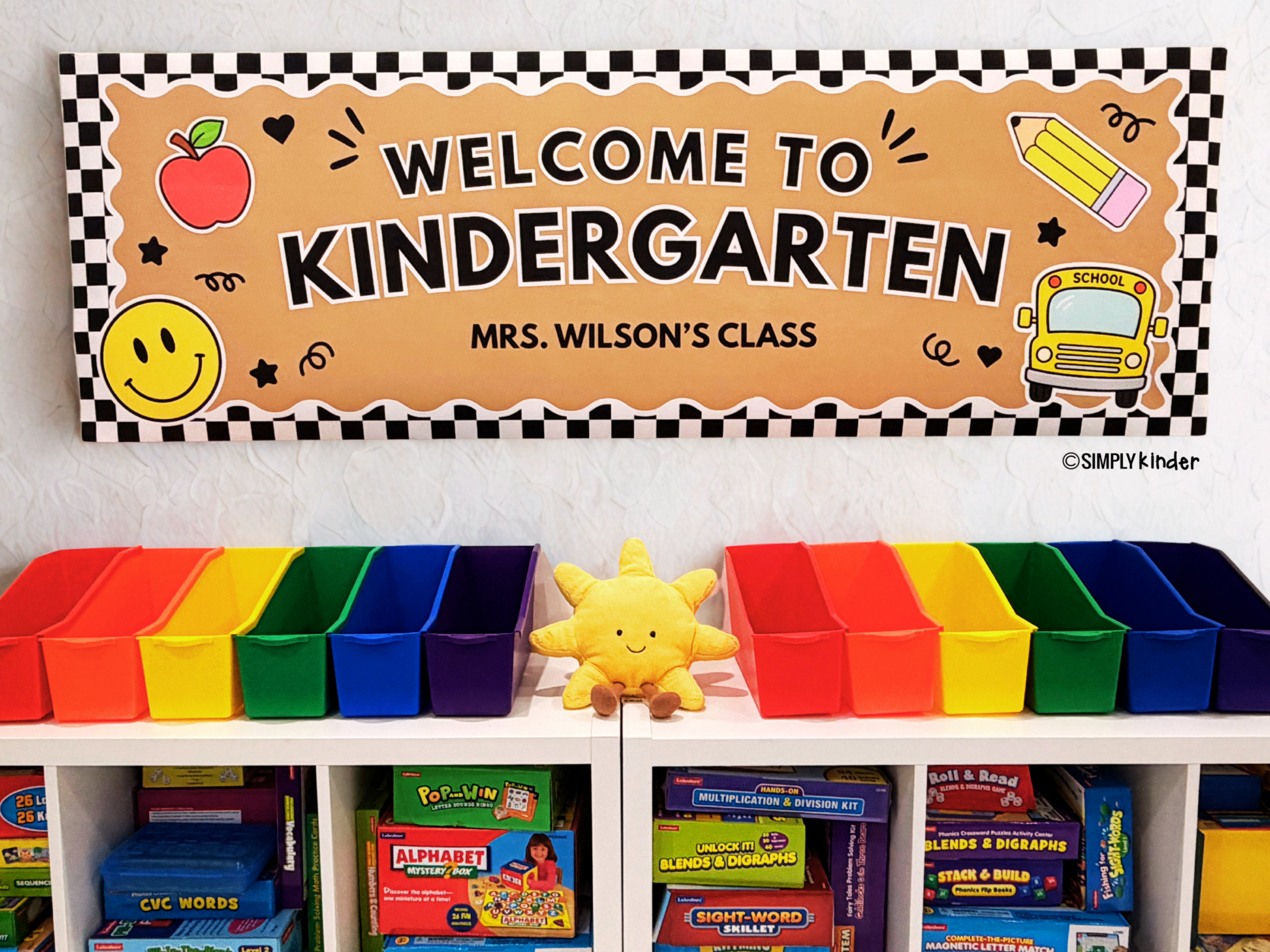
Our classroom banner templates are designed to be easy to personalize in Canva. All elements are unlocked, giving you the flexibility to adjust the design.
Before editing, we recommend duplicating the original template page. This gives you a backup copy in case you want to start again or compare different designs.
You might personalize your banner with wording such as:
If you like the preselected color pattern, change each letter individually. This will preserve the different colors already used in the design.
Some decorative lettering may be a graphic rather than regular typed text. These graphics can often be moved, resized, recolored, or removed, but the individual letters may have limited text-editing options.
Want the banner to match your school colors or classroom theme? Many template elements can be recolored directly in Canva.
Try changing the background, borders, text, or clipart colors to create a coordinating classroom door banner.
Not sure where to start? Use two or three main colors throughout the design to create a coordinated look without making the banner feel too busy.
You can add your own classroom logo, school mascot, or Canva graphics to personalize your banner even more.
You can also upload your own image by dragging it into Canva or selecting Uploads from the menu.
On supported graphics, Canva may also allow you to copy an art style:
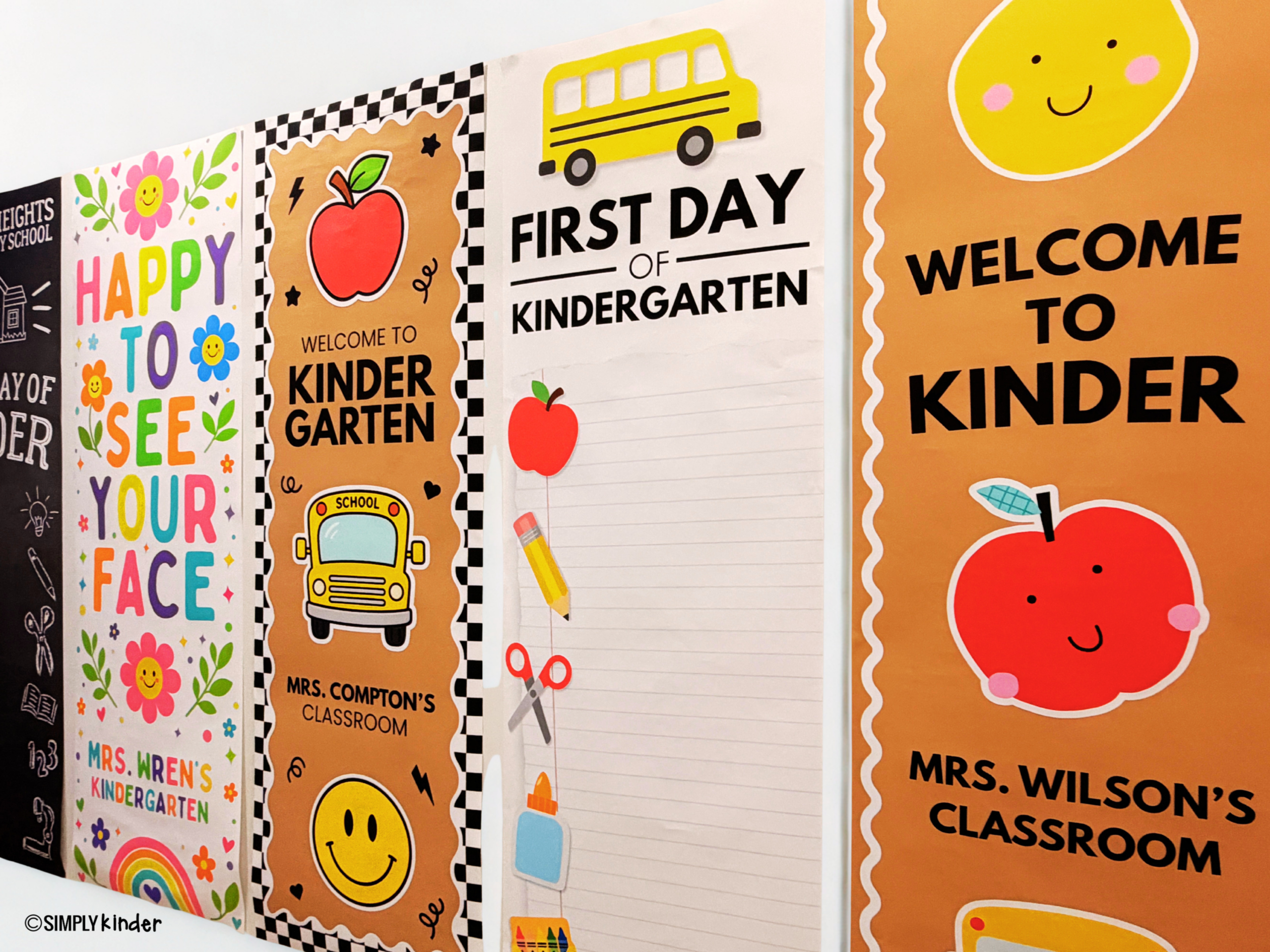
Because the templates are editable, you can use them for much more than a basic welcome sign.
Try these ideas:
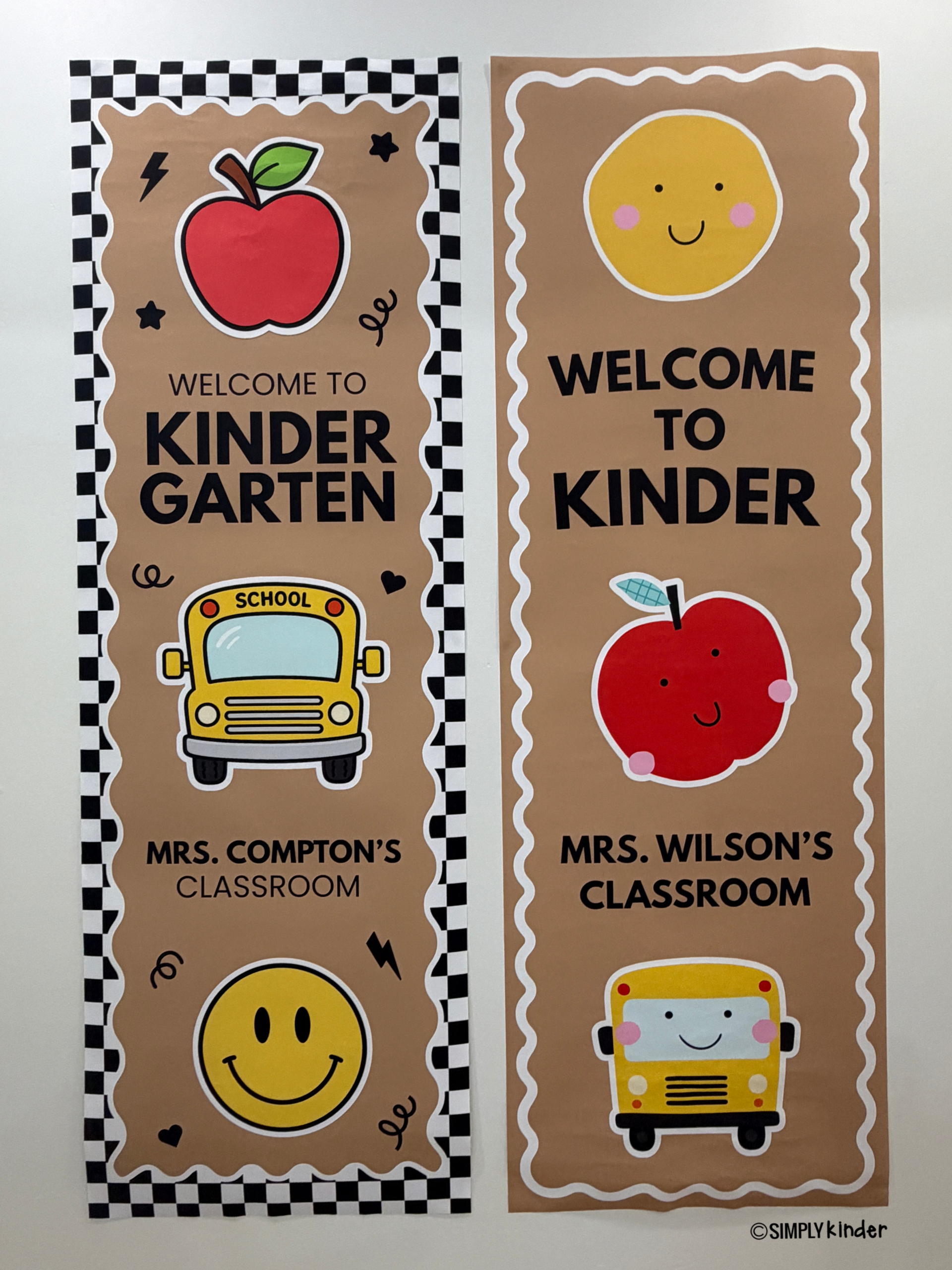
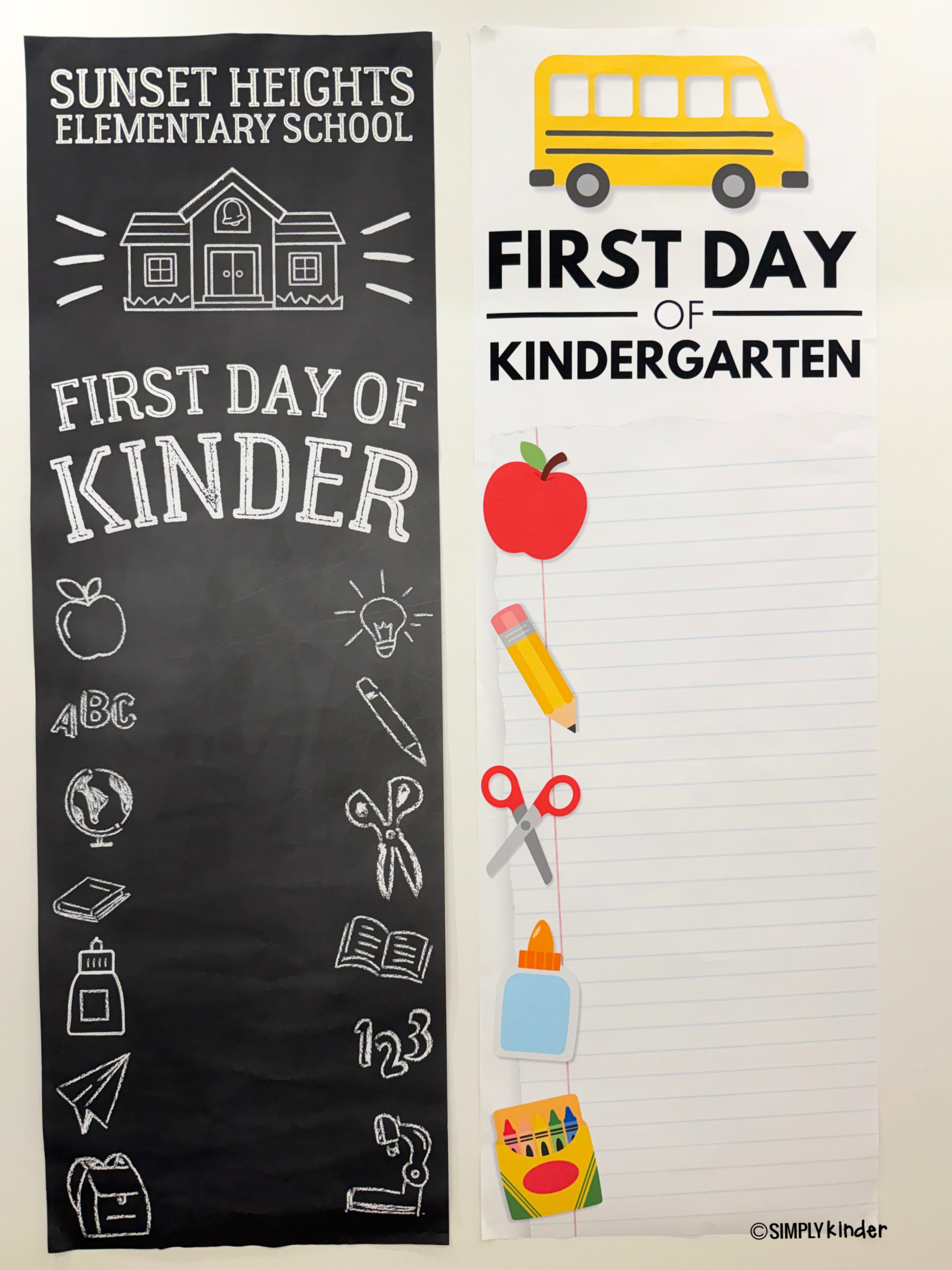
Once you’re happy with your classroom banner, follow these steps to prepare it for printing:
Increasing the download size may take a little longer, but it helps produce a higher-quality file for large-format printing. Canva also recommends downloading PNG or JPG files at the highest available size and quality when a design appears blurry. Canva’s image-quality guidance
Save the finished file somewhere you can easily find it before opening the Walgreens website.
Before ordering, check the Walgreens Photo website for current coupons or promotions. Banner prices and discounts can change throughout the year.
Then follow these steps:
Walgreens currently offers customizable 2×6 photo banners, with same-day pickup available at participating locations. Availability and production times may vary by store. Walgreens Photo banner information
Because websites change, some menu names may look slightly different when you place your order. Look for options such as Banners, Standard Banners, or Upload Your Own Design.
Before adding the banner to your cart, review the entire preview.
Make sure:
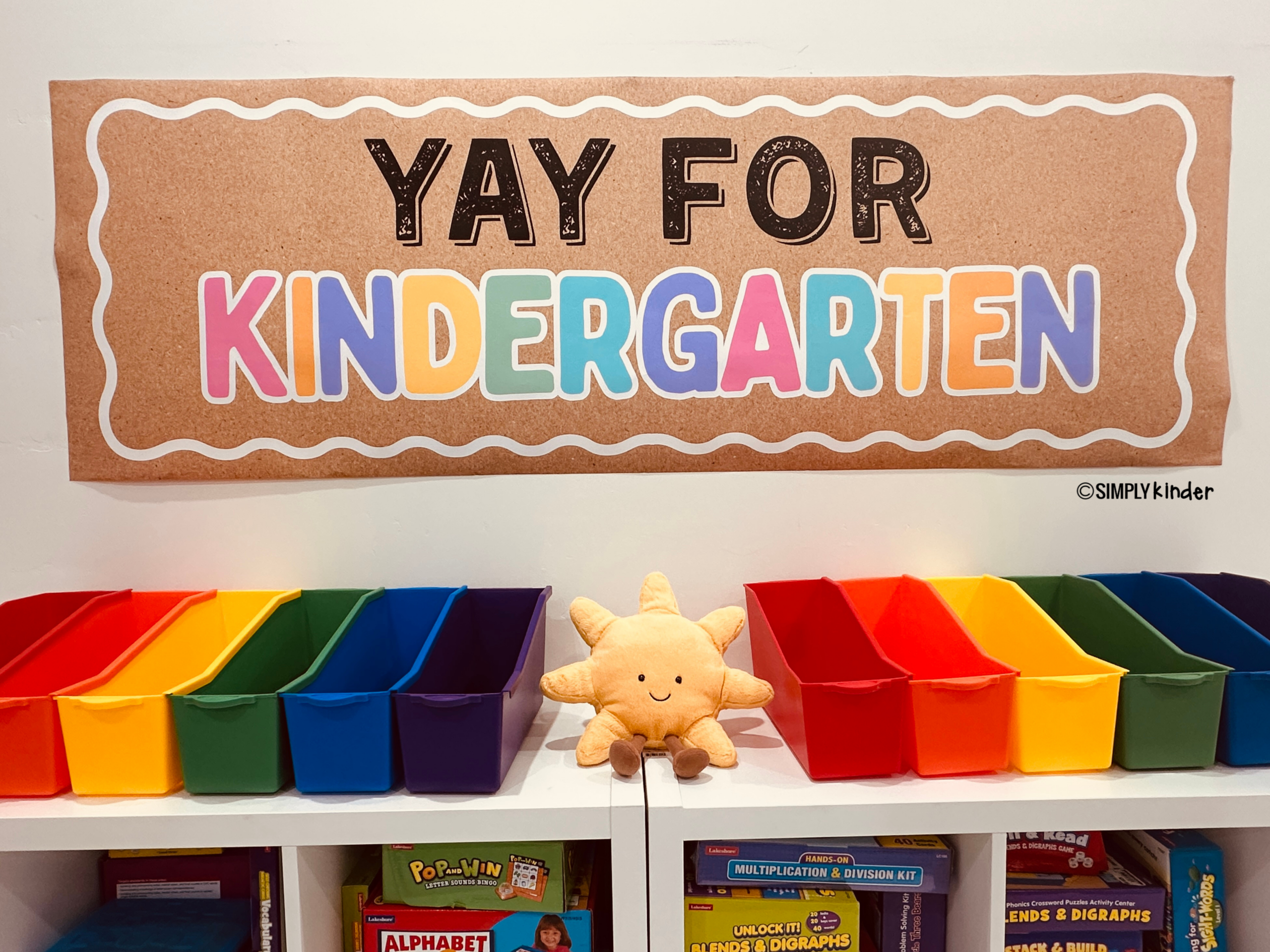
An editable classroom banner gives you a large, personalized decoration without requiring hours of cutting, laminating, or assembling individual pieces.
Use it to welcome students, decorate your classroom door, create a hallway display, or make a fun photo area for the first day of school. Once you customize the template, the rest is as simple as downloading your design and sending it to print.
Our collection includes 28 fully editable Canva classroom banners. Nothing is locked, so you can personalize the text, adjust colors, move or remove clipart, and add your own classroom logo or school mascot.
Ready to create your classroom banner? Shop here on Simply Kinder, or here on Simply Kinder + Printable Membership!